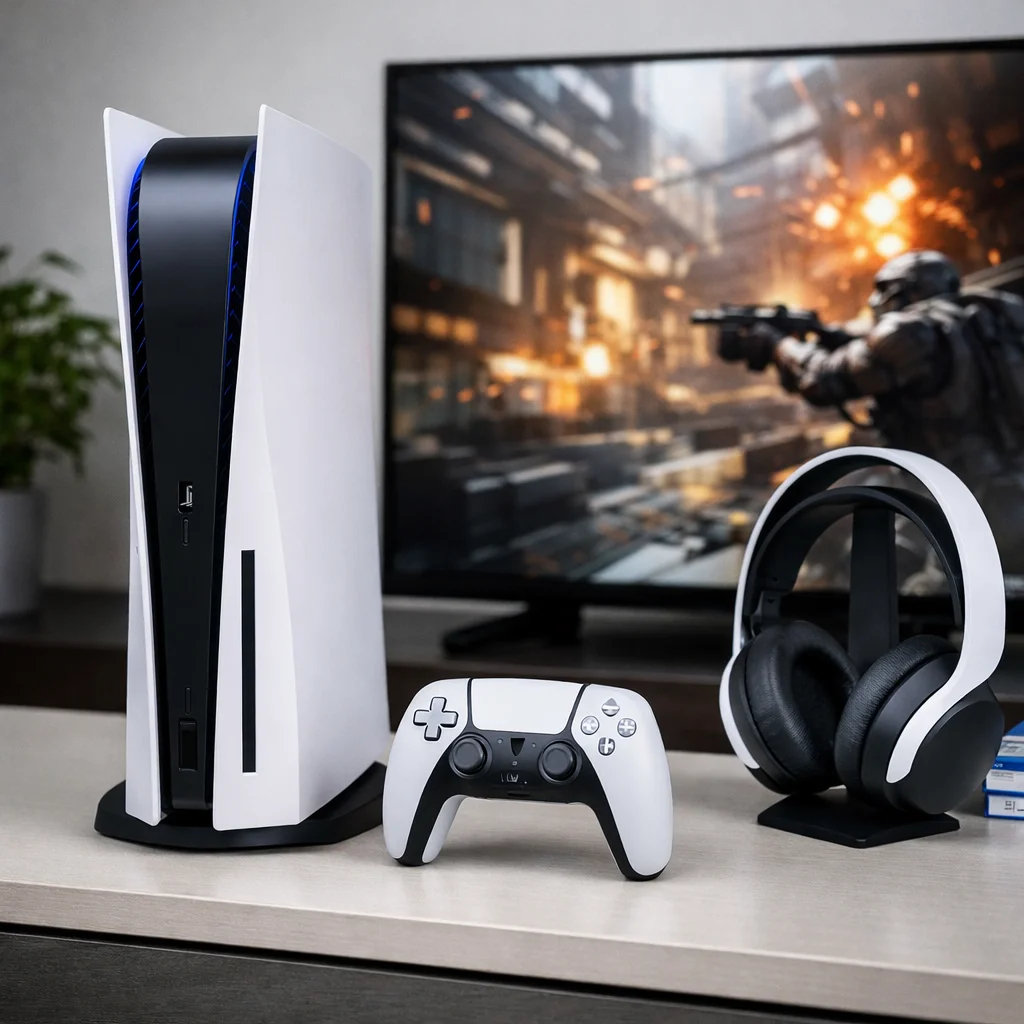

Getting strong performance from a PlayStation 5 is not only about the hardware inside the console. In many cases, the overall experience depends on how well the system is configured for the kind of games you actually play. Fast shooters, racing titles, sports games, and open-world releases all put different pressure on frame pacing, refresh rates, and response times. That is why a few settings inside the PS5 menu can make a practical difference, especially if you want smoother gameplay rather than simply relying on the default setup.
For most players, the goal is straightforward: reduce lag, improve motion clarity, and make games feel more responsive without buying new accessories or making complicated changes. Sony already includes several built-in tools to help with that. When used together, these options can improve the way the console works with your TV or monitor and help supported games run in a more stable way. Sony’s official PS5 display support guidance is also useful if you want to check whether your setup can take full advantage of advanced video features.
Start with VRR to improve consistency
Variable Refresh Rate, better known as VRR, is one of the most useful PS5 settings for anyone who notices occasional stutter or screen tearing. Instead of forcing your display to refresh at a fixed pace while the game output changes from moment to moment, VRR lets the refresh rate adapt in real time. The result is often a more stable-looking image during demanding scenes, particularly in games where performance can fluctuate.
This matters because many modern titles do not hold one perfectly locked frame rate throughout an entire session. Combat-heavy moments, crowded open-world areas, and effects-heavy sequences can all introduce inconsistency. VRR helps smooth out those changes so gameplay feels less choppy. On PS5, you can find it by going to Settings > Screen and Video > Video Output and switching VRR to Automatic.
It is also worth enabling the option that applies VRR to unsupported games. That does not guarantee the same result in every title, but it can still improve the experience in some cases. If your display supports the feature properly, this is one of the first adjustments worth making.
Use ALLM to cut unnecessary delay
Visual quality is important, but responsiveness matters just as much. Auto Low Latency Mode, or ALLM, is designed to reduce the delay between your controller input and what you see on screen. Many televisions add extra processing to improve movies or broadcast content. Those enhancements may look fine during regular viewing, but they can add unwanted delay during gaming.
ALLM helps the PS5 communicate with your display so the screen switches into a low-latency state automatically. In simple terms, it tells the TV to focus on speed instead of extra processing. That can be especially helpful in competitive games where timing matters, such as first-person shooters, fighting games, racing titles, or online sports games.
To turn it on, go to Settings > Screen and Video > Video Output and set ALLM to Automatic. If your TV does not support it, the console will let you know. Even though it is a simple change, it can make gameplay feel tighter and more immediate.
Enable 120Hz output if your display supports it
Another important setting is 120Hz Output. This option allows the PS5 to deliver higher refresh-rate gameplay in supported titles, which can make motion look smoother and controls feel sharper. Not every game uses it, and not every display can show it, but when the feature is available, the difference can be noticeable.
Players usually feel the benefit most in games built around speed and precision. Fast camera movement looks cleaner, motion blur feels less distracting, and aiming or reacting can feel more natural. To enable it, go to Settings > Screen and Video > Video Output and switch 120Hz Output to Automatic.
This setting works best when combined with a compatible display, ideally one that supports HDMI 2.1 features. If your television or monitor is limited to a lower refresh rate, you will not get the full benefit. Still, it is a worthwhile setting to enable so the console can use the higher mode whenever a game and display both allow it.
Choose Performance Mode over Resolution Mode
One of the easiest ways to make the PS5 feel smoother across supported games is to switch the system-wide preset to Performance Mode. Sony gives players a choice between prioritizing graphical quality and prioritizing frame rate. Resolution Mode aims for better image detail, while Performance Mode pushes supported games to favor smoother gameplay.
You can find this option under Settings > Saved Data and Game/App Settings > Game Presets. From there, choose Performance Mode. The change does not force unsupported games to behave differently, but it does tell compatible titles to lean toward higher frame rates when possible.
For players who value responsiveness, this is often the better everyday choice. A game running more smoothly at a stable frame rate usually feels better to play than one that looks sharper but reacts more slowly. Some users, especially those who care most about visual detail or use a higher-end display, may still prefer Resolution Mode for certain single-player titles. But if your main goal is reducing lag and improving overall flow, Performance Mode is the stronger default.
Why these settings work better together
Each of these adjustments improves a different part of the gaming experience. VRR helps with frame pacing and reduces visible instability. ALLM lowers processing-related input delay. 120Hz output improves clarity and responsiveness in supported games. Performance Mode tells the console to favor smoothness over maximum visual quality. On their own, each setting can help. Together, they create a setup that feels far more refined.
This is also why display compatibility matters. A PS5 can only use the features your TV or monitor supports. If your display includes HDMI 2.1, VRR, 120Hz support, and a true low-latency mode, you are more likely to see the full benefit. If not, some improvements may be limited, though enabling the settings still makes sense for future compatibility or supported scenarios.
Keep expectations realistic
These settings can improve performance, but they are not magic switches that transform every game. Some titles are better optimized than others. Some are locked to specific modes. Others may support one feature but not another. Even so, making these adjustments gives your console the best chance to deliver smoother gameplay wherever support exists.
It is also smart to keep your PS5 updated with the latest system software. Sony continues to improve compatibility and feature support over time, and newer updates can help the console work better with modern displays and recently released games.
Make the PS5 work for the way you play
The best PS5 setup depends on what matters most to you. If you mostly play competitive multiplayer games, reducing lag and improving motion should be the priority. If you prefer cinematic single-player adventures, you may occasionally choose higher visual quality instead. The good thing about these settings is that they give you flexibility without adding cost.
For most users, enabling VRR, ALLM, 120Hz output, and Performance Mode is the most practical place to start. These are quick changes, but they can have a lasting impact on how your games feel day to day. Instead of treating the PS5 as a plug-and-play console that should never be touched, it makes more sense to fine-tune it so the hardware, software, and display all work together in the most efficient way possible.
If you are looking for one simple improvement that does not involve buying anything new, this is it. A few minutes in the settings menu can help your PlayStation 5 feel faster, smoother, and better suited to the games you play most.
You may like: PS Plus April 2026 games list: Extra and Premium lineup revealed.

Make Swikblog your go-to source on Google for reliable updates, smart insights, and daily trends.