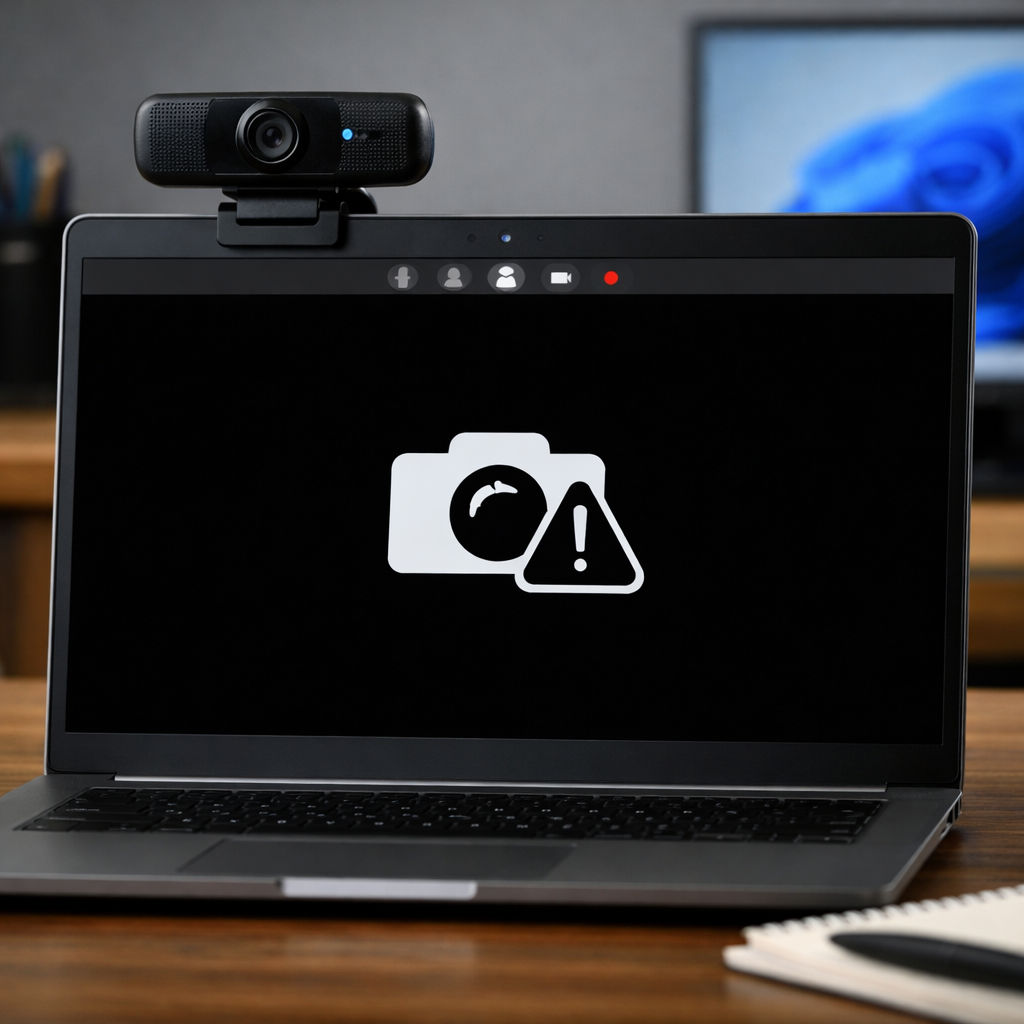

Windows 11 users encountering camera or webcam failures are increasingly running into a frustrating but common issue, particularly as video conferencing, remote work, and online communication remain essential in 2026. The problem typically surfaces without warning — a black screen during a meeting, an app failing to detect the camera, or persistent “device not available” errors.
While such issues may appear serious, they are often triggered by simple factors such as disabled permissions, background app conflicts, or outdated drivers rather than hardware failure. This combination of high disruption and relatively straightforward fixes has made the issue widely discussed among users looking for immediate solutions.
Understanding where the problem originates is critical, as Windows 11 introduces layered privacy controls and device management settings that can unintentionally block camera access.
Key fixes Windows 11 users should try
1. Check for physical blockage or hardware disablement
Before troubleshooting software, ensure the webcam is not physically blocked. Many laptops include a built-in privacy shutter that can easily be left closed, resulting in a black screen even when the camera is active. Some devices also feature a dedicated camera toggle key on the keyboard, which can disable the camera at a hardware level. External webcam users should verify the device is properly connected to a working USB port.
2. Review camera permissions in system settings
Windows 11 may block camera access at the system level even if the hardware is functioning. Navigate to Settings → Privacy & Security → Camera and confirm that “Camera access” is enabled. In addition, ensure “Let apps access your camera” is turned on, and verify that the specific application you are using has permission enabled. Microsoft outlines these controls in its official guidance here.
3. Ensure the correct camera device is selected
Systems with multiple cameras — such as a built-in webcam and an external USB device — may default to the wrong one. This can result in blank output or error messages. Users should check both Windows settings (Bluetooth & Devices → Cameras) and in-app settings to manually select the correct device. Disabling unused cameras can help prevent conflicts.
4. Check if another application is using the camera
Windows allows only one application to actively use the camera at a time. If another app is running in the background, it may block access. Users can look for a camera indicator light or a system tray icon showing camera activity. If the source is unclear, reviewing recent camera activity may help identify unexpected or suspicious access.
5. Update or reinstall camera drivers
Driver issues remain one of the most common causes of camera failure. Outdated, corrupted, or missing drivers can prevent proper detection. Users should open Device Manager, expand the Cameras section, and update the driver using automatic search. If the issue persists, uninstalling the device and restarting the system allows Windows to reinstall a fresh driver. For external webcams, downloading drivers directly from the manufacturer can offer better compatibility.
6. Check BIOS or UEFI hardware settings
Some laptops, including certain premium and enterprise models, allow users to disable the webcam at the firmware level through BIOS/UEFI settings. When disabled here, Windows cannot detect the camera at all. Users should enter BIOS/UEFI during system startup and verify that the integrated camera is enabled. In some devices, front and rear cameras may be controlled separately.
7. Rule out hardware failure
If none of the above steps resolve the issue, hardware problems should be considered. Testing the webcam on another device can confirm whether the unit itself is functional. Alternatively, connecting a different external webcam to the same system can help determine whether the issue lies with the computer’s internal hardware.
Why this issue keeps affecting users
The persistence of webcam problems in Windows 11 reflects the growing complexity of device management and privacy controls. While these features enhance security, they also introduce multiple layers — hardware switches, system permissions, app-level settings, and firmware controls — any of which can interrupt camera functionality.
For users, the impact is immediate. A non-functional webcam can disrupt meetings, delay interviews, interrupt online classes, and affect day-to-day communication. As a result, even minor configuration issues carry disproportionate consequences.
In most cases, however, the solution does not require replacing hardware. By systematically checking permissions, device selection, background activity, and drivers, users can resolve the issue quickly and restore normal functionality without technical intervention.
You may like: EuroMillions Results April 10, 2026: Winning Numbers, Jackpot Details and Prize Breakdown.

Make Swikblog your go-to source on Google for reliable updates, smart insights, and daily trends.